 Fawnly
How to Show Your Step Count on Your iPhone Home Screen
See how your day is moving without opening an app every time. Here’s how to put your steps and daily goal progress on your iPhone Home Screen with Fawnly.
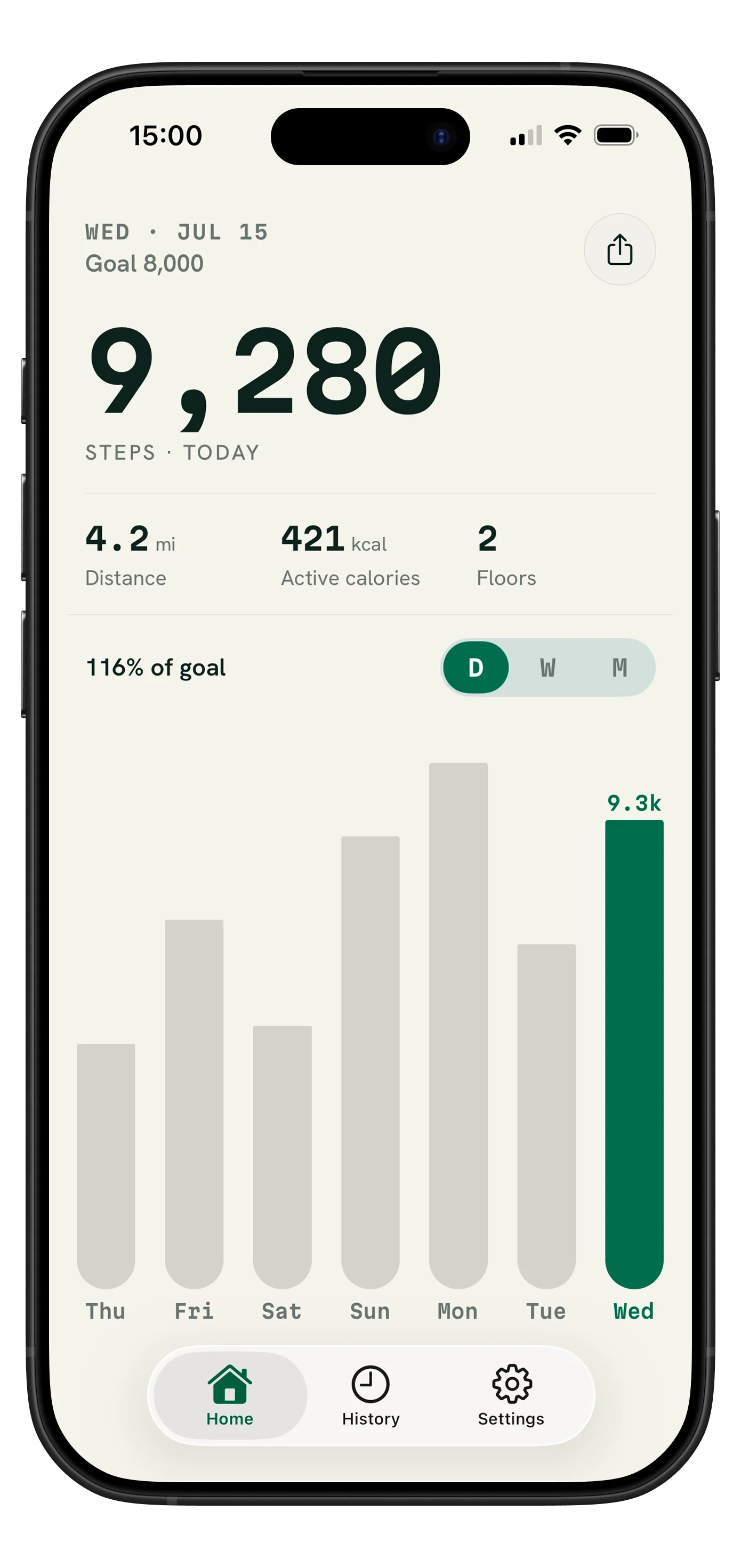
Use a step-count widget such as Fawnly’s free Today widget. Install and open Fawnly, allow it to read Steps from Apple Health, then touch and hold an empty part of your Home Screen. Choose Edit → Add Widget, search for Fawnly, and add the Today widget.
A step total is easier to notice when it’s beside the apps you already use. You might glance at it before lunch, after a walk, or at the end of the day. It’s a small way to keep your progress visible without making walking another task to manage.
This guide uses Fawnly’s Home Screen widget. You’ll need your iPhone, Fawnly, and permission to read your Apple Health steps. An Apple Watch isn’t required.
1. Open Fawnly and connect Apple Health
Download Fawnly using the App Store button above, then open it and follow the setup prompts. When asked for Health access, allow Fawnly to read Steps. You can choose which other activity categories to share.
If you previously skipped that permission, open Health → Summary → your profile picture → Apps under Privacy. Select Fawnly and enable access to Steps. Return to Fawnly and check that your daily summary has data.
Fawnly displays activity from Apple Health. Apple explains how automatic step counting and app permissions work in its guide to using the Health app.
2. Add the step widget to your Home Screen
- Return to your iPhone Home Screen. Press and hold a blank space until the icons start moving.
- Open the widget gallery. Tap Edit, then Add Widget. On older iOS versions, use the + button instead.
- Search for Fawnly. Select it to see its available widgets.
- Choose the Today widget. Browse the available layouts, then tap Add Widget.
- Place it where you’ll notice it. Drag it into position and tap Done.
You should now have a view of today’s steps and goal progress on your Home Screen. Apple’s widget setup guide also covers adding and rearranging widgets.
3. Make it useful for your day
Try keeping the widget on your first Home Screen, near something you open often. If you tuck it inside a rotating widget stack, your steps may not always be the item you see.
In Fawnly, choose a daily goal that fits your routine. The widget gives you a quick check-in; open the app when you want your activity summary and recent progress. Home Screen widgets are free, while Fawnly Plus is optional for additional features.
If your step widget is missing or not updating
Fawnly doesn’t appear in the widget gallery
Make sure Fawnly has finished installing, then open it and complete setup before checking the gallery again. If it still doesn’t appear, check the App Store for an update and try restarting your iPhone.
The widget is blank or shows no steps
First check whether Apple Health has steps for today. If it does, review Fawnly’s Steps permission using the path above, then reopen Fawnly. If Health itself has no steps, check Fitness Tracking under Settings → Privacy & Security → Motion & Fitness, and remember to carry your phone while walking.
The widget shows an older total than the app
A Home Screen widget is a periodic snapshot, so it may lag behind your latest activity. iOS controls widget refreshes; it won’t necessarily update with every step. Open Fawnly to check the latest available data and give the widget time to refresh. If it stays stuck, try removing and adding the widget again, or visit Fawnly Support.
Frequently asked questions
Do I need an Apple Watch?
No. Your iPhone can supply step data while you carry it. Our guide to tracking steps without an Apple Watch explains how that works and what to check when steps are missing.
Do I need Fawnly Plus for the widget?
No. Fawnly’s Home Screen widgets are free. You can try the step widget without subscribing or creating an account.
Does the step widget need my location?
No. Viewing Apple Health steps doesn’t require Fawnly to use GPS. Location is requested separately when you choose to record an outdoor activity. See our Privacy Policy for details.
Is this the same as a Lock Screen widget?
No. These instructions add a widget beside your app icons on the Home Screen. Fawnly’s Live Activity during an outdoor recording is a separate feature; it isn’t an always-visible daily step widget on the Lock Screen.