 Fawnly
How to Track Steps on iPhone Without an Apple Watch
Your iPhone can count steps without an Apple Watch. Learn how to view steps in Apple Health, fix missing data, and track progress with Fawnly.
Yes. Your iPhone can count your steps without an Apple Watch. Its built-in motion sensors collect walking data while you carry the phone, and the Health app stores that information for you to review. An Apple Watch can add another data source, but it is not required for basic iPhone step tracking.
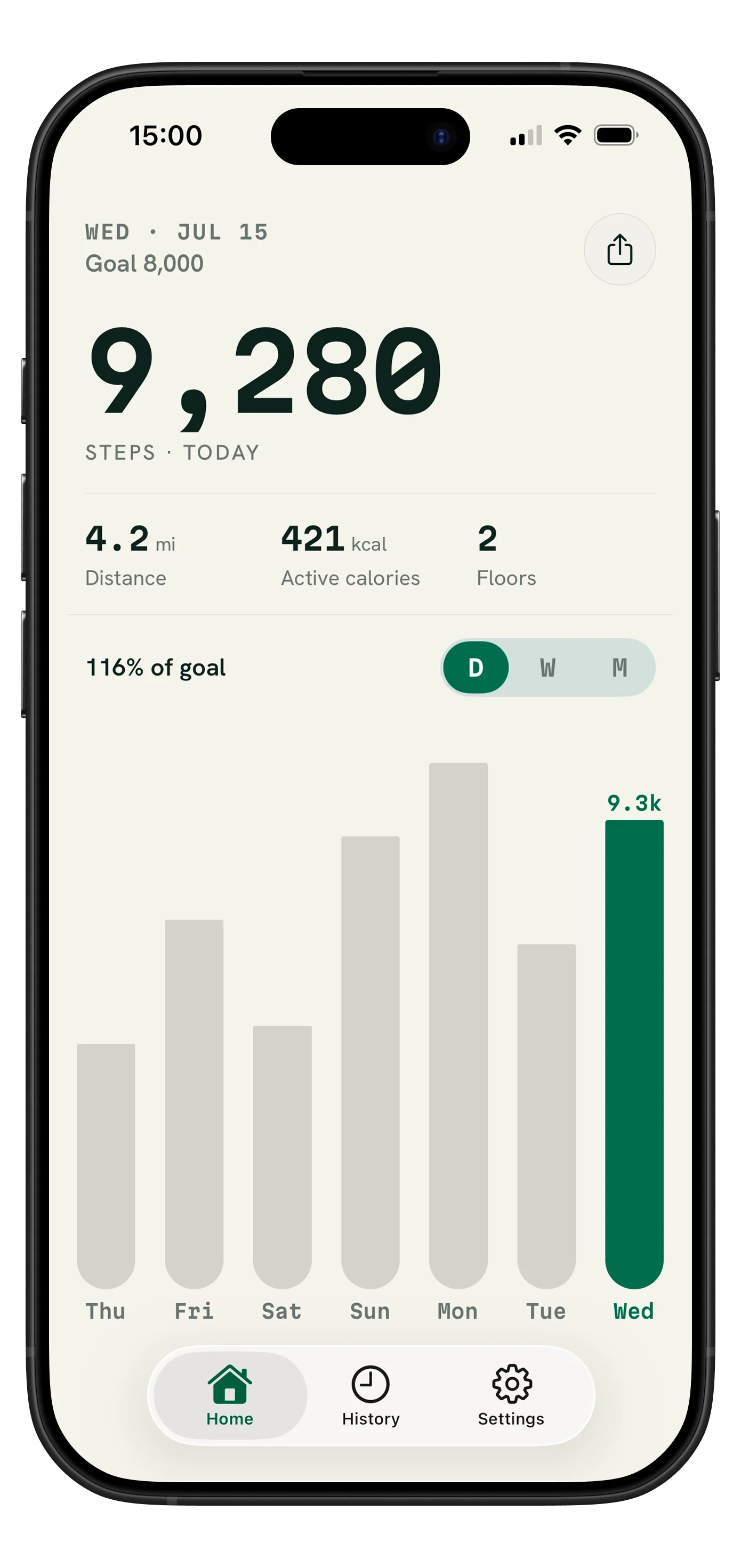
Step tracking can be surprisingly easy to miss on an iPhone. There is no large step total on the Lock Screen by default, and the information lives inside Apple Health alongside many other measurements. Once you know where to look, though, your phone can give you a useful picture of how much you move each day.
How your iPhone counts steps without an Apple Watch
Your iPhone includes motion sensors that can recognize movement while the phone is with you. Apple says the Health app automatically counts steps and walking and running distances. The iPhone can also store other walking information captured by its built-in sensors.
This means you do not need to start a workout, open an app before every walk, or own an Apple Watch just to collect basic daily steps. Put your iPhone in a pocket or carry it with you, and compatible step data can be recorded in the background.
For Apple's current explanation of how Health gathers and displays this information, see Use the Health app on your iPhone or iPad.
How to see your steps in Apple Health
You can check today's total and make Steps easier to find from the Health app:
- Open the Health app on your iPhone.
- Choose Summary. This is the main view for the health categories you use most often.
- Tap Edit next to Pinned. Your pinned categories appear prominently on the Summary screen.
- Find and pin Steps. You can then arrange it alongside the other categories that matter to you.
- Tap Done. Your step total should now be easier to reach whenever you open Health.
- Tap Steps for more detail. The detail view lets you explore changes over time rather than seeing only today's number.
If Steps is already pinned, simply open Health, go to Summary, and tap the Steps card. Apple also explains how to pin and arrange categories in its guide to viewing Health data on iPhone.
Why your iPhone step count may look too low
A missing or unusually low total does not always mean step counting is broken. Check these common causes first:
- Your iPhone was not with you. The phone cannot detect steps from a walk when it was left on a desk, in a locker, or at home.
- Fitness Tracking is disabled. Review Motion & Fitness access in iPhone Settings if Health is not receiving movement data.
- An app does not have Health permission. In Health, open your profile, choose Apps under Privacy, select the app, and review the categories you have allowed it to read.
- The latest data has not refreshed yet. Open Health first, then reopen the step-tracking app after the current total appears.
- You use more than one source. An iPhone, Apple Watch, and compatible apps can all contribute health data. Review the Steps detail screen if you want to understand which sources are present.
Remember that a phone-based step count is a practical wellness estimate, not a laboratory measurement. How and where you carry your iPhone can affect what its sensors detect.
Apple Health or a dedicated step tracker?
Apple Health is the underlying home for a wide range of health information. It is useful when you want to inspect categories, sources, trends, and detailed records. A dedicated step tracker can make one small part of that information easier to understand every day.
The best choice depends on what helps you stay consistent. If you only want to check a number occasionally, the Health app may be enough. If you prefer a focused dashboard, a visible daily goal, faster history, widgets, or a more personal look, a step tracker can create a gentler routine around the same Apple Health data.
How Fawnly makes walking progress easier to see
Fawnly is a calm walking and step tracker designed around Apple Health activity. With permission, it reads your steps, walking and running distance, active energy, and flights climbed, then presents them in a quieter view made for everyday walking.
You can see your daily goal, move through week, month, and year history, keep progress visible with Home Screen widgets, and choose themes that make the app feel like yours. Fawnly can also create polished share cards when you decide a gentle win is worth celebrating.
Fawnly does not require an account and does not include Fawnly cloud sync. Your activity views, settings, and recorded route history stay local to your device. You can read the details in the Fawnly Privacy Policy.
Does step tracking on iPhone need GPS?
Basic daily step tracking through Apple Health does not require Fawnly to track your GPS location. Fawnly requests location only when you deliberately start an outdoor activity recording, where location is needed to calculate session distance and pace and draw the route.
If you never start an outdoor recording, you can still use Fawnly to view supported Apple Health activity. If you do record a walk, the precise route remains local unless you choose to create and share a privacy-conscious route card. Visit Fawnly Support for current permission and recording details.
Choose a step goal that fits your real life
A step tracker is most helpful when the goal supports your routine rather than judging it. Start by noticing an ordinary week. Then choose a target that encourages a little more movement without making every low day feel like failure.
Your goal can change with your schedule, health, weather, travel, or season. A ten-minute walk after lunch may be more useful than chasing an arbitrary number that does not fit your life. Fawnly lets you adjust your daily goal or turn it off whenever you want.
Frequently asked questions
Do I need an Apple Watch to count steps on an iPhone?
No. Your iPhone can count steps using its own built-in sensors while you carry it. An Apple Watch is another possible source of activity data, not a requirement for basic iPhone step tracking.
Will my iPhone count steps if I leave it at home?
No. The iPhone must move with you to detect those steps. If you leave it behind, it cannot record that part of your walk. A worn Apple Watch may contribute data separately if you use one.
Why does Fawnly need Apple Health permission?
Fawnly needs your permission to read the activity categories it displays, including steps, walking and running distance, active energy, and flights climbed. You control those permissions and can change them in the Health app.
Does Fawnly change my Apple Health step total?
No. Fawnly does not write step samples, calories, or elevation to Apple Health. It reads the supported values you permit and presents them in the app. A completed recorded workout and route can be saved only if you enable that separate option.
Is an iPhone step count perfectly accurate?
No consumer step counter is perfect. Results can vary with your device, movement, and how you carry the phone. Treat the total as a useful way to notice patterns over time, not as medical or diagnostic information.