 Fawnly
How to Record a Walk on iPhone and See Your Route
Daily steps tell you how much you moved. Recording a walk shows the rest: distance, pace, time, and the route you took. Here’s how to record one on iPhone with Fawnly and keep the route to yourself.
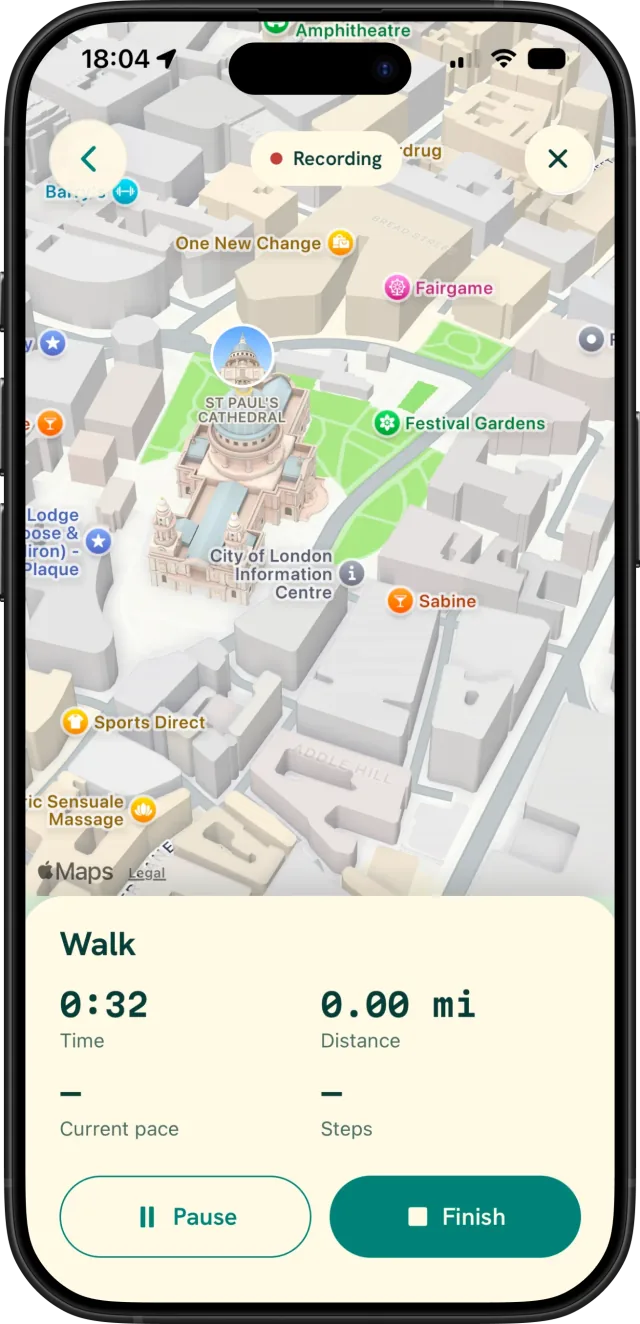
Open Fawnly, go to Activities, and choose Walk. Allow location access when asked, then tap Start activity. Fawnly shows time, GPS distance, pace, and your route on a map, with Pause, Resume, and Finish controls. Walk recording is free and doesn’t need an Apple Watch.
How to record a walk
- Open the Activities tab in Fawnly.
- Choose Walk. It’s the free, everyday option for an outdoor walk.
- Allow location access. Fawnly asks only when you start your first activity. It uses GPS to measure distance and pace and to draw your route.
- Tap Start activity. Starting outdoors, away from tall buildings, helps Fawnly find a GPS signal quickly.
- Walk. The recorder shows active time, distance, current pace, and your route on an Apple Maps view. If you allow Motion & Fitness access, it can also show steps for the session.
- Pause or resume as needed. Paused time isn’t counted as active time.
- Tap Finish. Your walk appears under Recent, where you can review the route, average pace, and splits.
If you go back while recording, the walk keeps going and an Activity in progress card takes you back to the recorder.
Keep recording with your phone locked
To keep recording while your phone is in your pocket or you’re using another app, Fawnly needs background location access. When iOS asks, allow Fawnly to use your location even when you’re not using the app. You can change this later in Settings → Privacy & Security → Location Services → Fawnly.
On supported iPhones, an active walk also appears as a Live Activity on the Lock Screen and in the Dynamic Island, with elapsed time, distance, and pace. Tap it to jump back to the recorder.
If you’d rather not allow background location, you can still record. Fawnly will remind you to keep the app open while you walk.
Tips for a more accurate route
- Keep Precise Location on for Fawnly in Location Services. Without it, distance and the route can be rough.
- Start in the open and give GPS a moment before you set off.
- Expect some drift in dense cities, under heavy tree cover, or in tunnels. GPS accuracy varies with signal and surroundings.
- Pause during long stops so your average pace reflects your walking.
Recording doesn’t change your daily steps
Your daily totals on Fawnly’s Home and History screens come from Apple Health, which already counts the steps from your walk. A recorded walk is kept separately, so those steps aren’t counted twice.
Keep your routes private
Recorded walks and precise routes stay on your iPhone. Fawnly has no account and no Fawnly cloud sync, and location is used only while you’re recording.
If you want your walks in Apple Health too, turn on Save activities to Apple Health in Fawnly’s Settings. It’s off by default, and it saves the finished workout and route, not steps or calories.
With Fawnly Plus, you can share a walk as a card that’s generated on your iPhone. Review the preview before you share: a familiar route shape can reveal where you walk. Read the Privacy Policy for details.
Paced Walk, Hike, and Run
Fawnly Plus adds more ways to record. Paced Walk plays a gentle cadence beat at an Easy, Steady, Brisk, or custom steps-per-minute target. Hike is made for longer trails and shows an elevation profile. Run records faster outings. Walk recording stays free.
Frequently asked questions
Is recording a walk free?
Yes. Walk recording is free. Paced Walk, Hike, and Run are part of Fawnly Plus.
Does Fawnly track my location all the time?
No. Fawnly uses location only while you’re recording an activity. Viewing your daily steps doesn’t use GPS.
Do I need an Apple Watch?
No. Fawnly records walks with your iPhone’s GPS. See our guide to tracking steps without an Apple Watch.
Will my walk show up in Apple Health?
Only if you turn on Save activities to Apple Health. Fawnly then saves the completed workout and its route. Your daily steps in Health are recorded by your iPhone either way.