 Fawnly
iPhone Not Counting Steps? 9 Fixes for Apple Health
If your step count is stuck, missing, or lower than you expected, the cause is usually a setting, a permission, or where your phone was during the day. Work through these checks in order.
Start with Settings → Privacy & Security → Motion & Fitness and make sure Fitness Tracking is on. Then open the Health app, go to Steps, and check Data Sources & Access to confirm your iPhone is recording. If Health shows your steps but another app doesn’t, that app needs permission to read Steps.
First, find out where the steps are missing
Two different problems can look the same. Either your iPhone isn’t recording steps at all, or it is recording them and an app or widget isn’t showing them yet. Checking Apple Health first tells you which one you have.
Open the Health app, tap Browse (or search for “Steps”), then choose Activity → Steps.
- Health is missing steps too: start with fixes 1 to 5 below.
- Health has steps, but another app or widget doesn’t: skip to fixes 6 to 9.
If Apple Health is missing steps
1. Turn on Fitness Tracking
Your iPhone records steps only when Fitness Tracking is on. Open Settings → Privacy & Security → Motion & Fitness and turn on Fitness Tracking. On the same screen, make sure Health is allowed to use motion data.
2. Carry your iPhone with you
Your iPhone counts steps with its built-in motion sensors, so it only counts the steps it travels with. A pocket, hand, or bag works. A phone on a desk, on a charger, or in a shopping cart won’t see your walk.
3. Check Data Sources & Access
In Health, open Steps, scroll down, and tap Data Sources & Access. Your iPhone should be listed under Data Sources. If an Apple Watch or another app also records steps, Health uses the source at the top of the list when they overlap, so the same steps aren’t counted twice. Tap Edit to reorder sources or turn one off.
Tap Show All Data on the Steps screen to see individual records and where each one came from. Apple explains source priority in its guide to managing Health data.
4. Restart and update your iPhone
A restart clears many temporary glitches. If steps still don’t appear afterward, install the latest version of iOS from Settings → General → Software Update.
5. Check your Apple Watch connection, if you use one
Steps from an Apple Watch sync to Health on your iPhone. If watch steps are missing, make sure Bluetooth is on and the watch is paired and nearby, then give it a few minutes to sync. You don’t need a watch for step counting at all; our guide to tracking steps without an Apple Watch explains how the iPhone does it alone.
If Health has steps but your app or widget doesn’t
6. Give the app permission to read Steps
Apps can only read the Health categories you allow. In the Health app, tap your profile picture, then tap Apps under Privacy. Choose the app and turn on Steps, along with any other categories it uses. For Fawnly, allow Steps, Walking + Running Distance, Active Energy, and Flights Climbed.
7. Unlock your iPhone and open the app
To protect your privacy, iOS keeps Health data encrypted while your iPhone is locked, so apps may not be able to read your newest steps until you unlock it. Unlock your phone, open the app, and give it a moment to refresh.
8. Turn off Low Power Mode
Low Power Mode reduces background activity, including Background App Refresh, so apps and widgets may update less often while it’s on. If you rely on an app updating in the background, also check Settings → General → Background App Refresh.
9. Give widgets time to refresh
Home Screen widgets show snapshots that iOS refreshes on its own schedule, so a widget can trail the app by a while. Open the app to see the latest total. Our guide to showing your step count on the Home Screen has more widget troubleshooting.
Why your step count may still look low
A phone-based step count is an estimate, and some everyday situations produce fewer counted steps than you might expect:
- Your phone rode in a stroller, cart, or bike basket instead of on you.
- You walked on a treadmill with the phone resting on the console.
- You took short, shuffling steps around the house or office.
- You cycled, swam, or did other exercise that doesn’t involve steps.
Small differences between devices and apps are normal. Look for patterns over days and weeks rather than worrying about a single total.
Spot missing days sooner with Fawnly
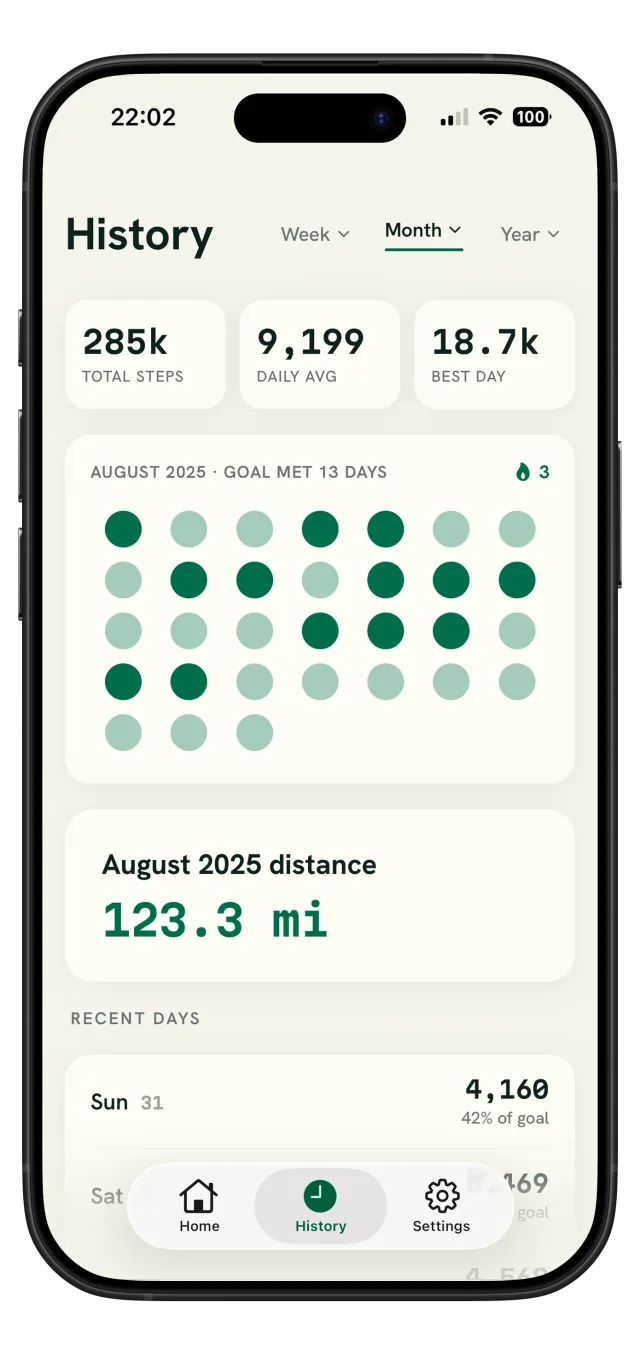
Fawnly reads your step totals from Apple Health, using the same source priority as the Health app, and shows them alongside your daily goal and recent history. If Fawnly can’t confirm it has readable Health data, it shows a calm Needs attention status rather than a misleading zero.
Fawnly doesn’t need an account, and your activity history stays on your iPhone. See Fawnly Support for permission details.
Frequently asked questions
Why did my iPhone suddenly stop counting steps?
Most often, Fitness Tracking was turned off, the phone wasn’t carried, or Health needed a restart after an update. Work through fixes 1 to 4 first.
Why does another app show a different step count than Health?
Apps can combine sources differently or update at different times. Apple Health uses your source priority to avoid counting the same steps twice. Apps that read Health’s combined total, like Fawnly, should match it once they refresh.
Can I add missing steps manually?
Yes. In Health, open Steps and tap Add Data. Health labels manually entered data, and by default it takes priority over data recorded by your devices.
Do I need an Apple Watch to count steps?
No. Your iPhone counts steps on its own while you carry it. An Apple Watch is an extra source, not a requirement.